2. Creating Agents
This guide explains how to configure agents in Texterz.
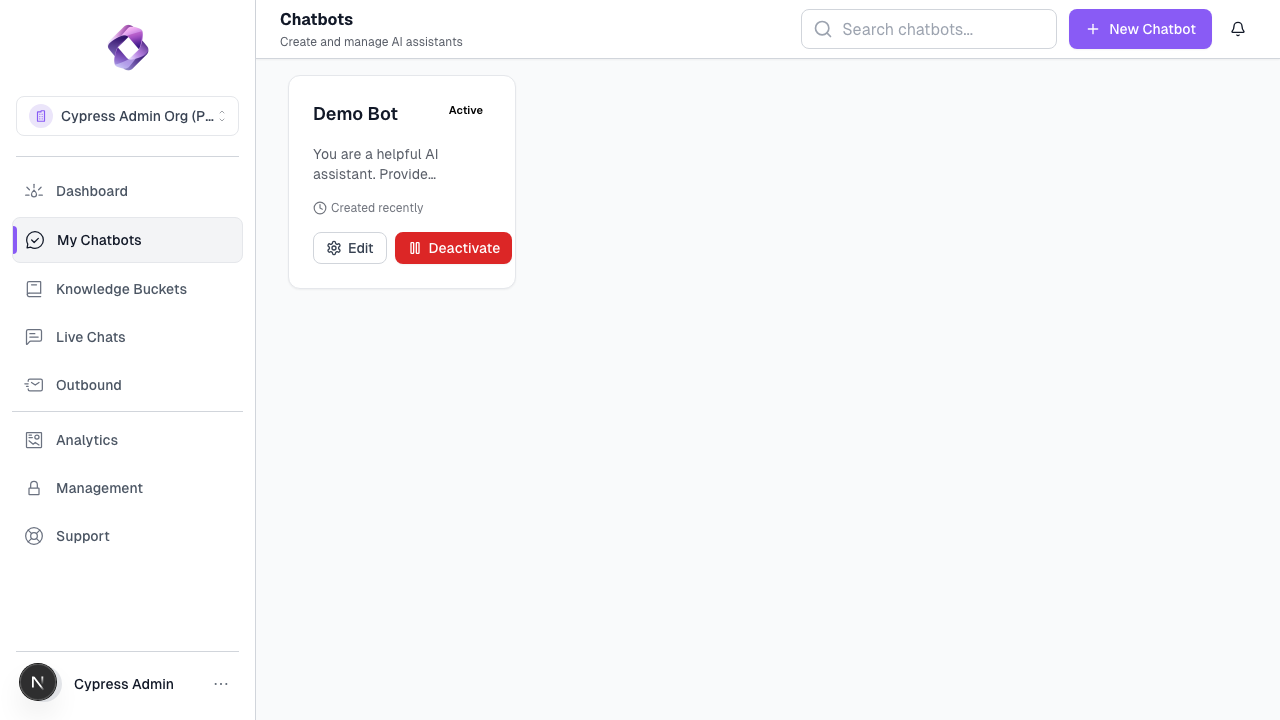
An Agent is the execution layer that connects knowledge, channels, and tools.
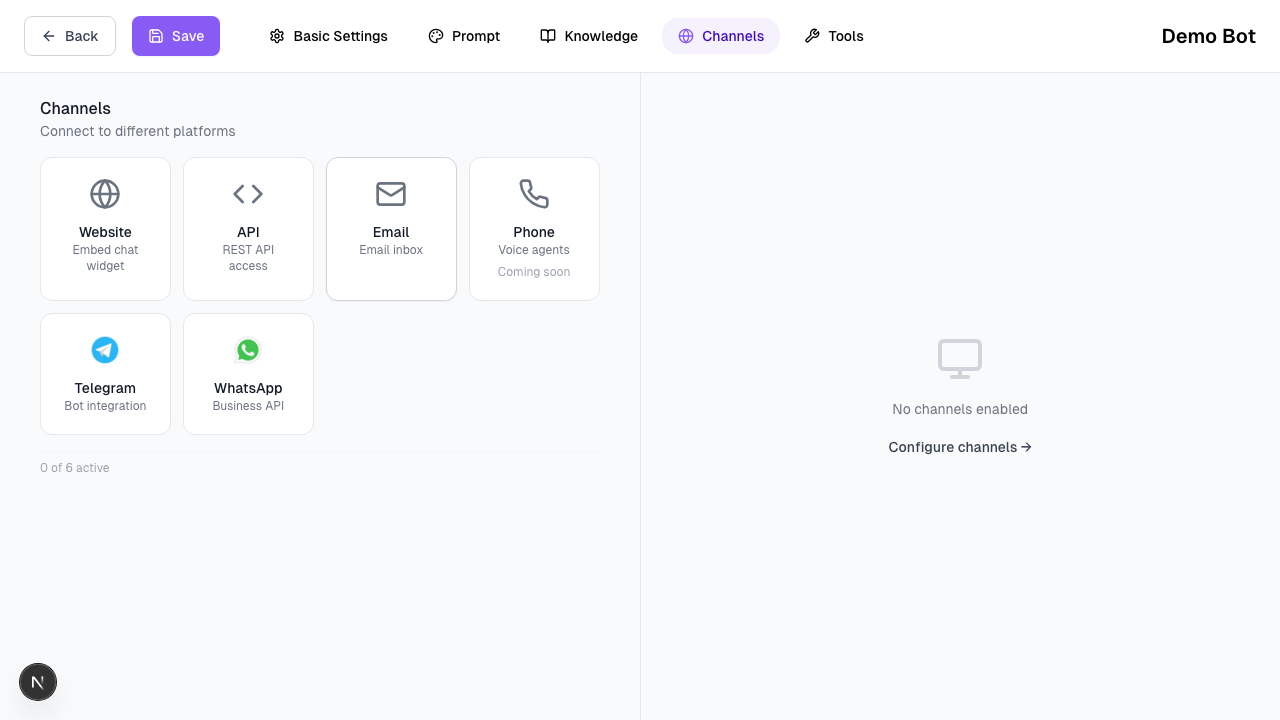
Channel Configuration
Connect your agent to various channels like WhatsApp, Web Widget, or Telegram.
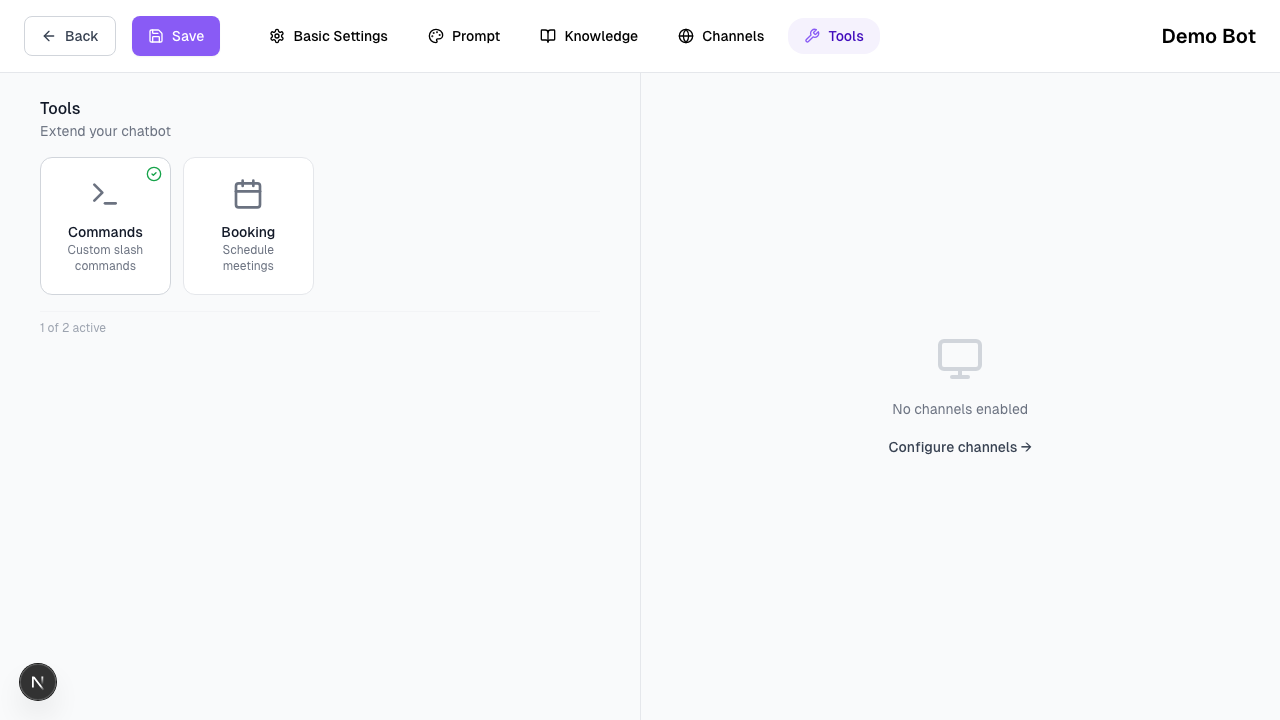
Tool Integration
Enable tools like Calendly or custom webhooks to extend your agent's capabilities.
 Agents control behavior, goals, and permissions. They do not store knowledge themselves.
What an Agent Does
An agent is responsible for:
- Interpreting user messages
- Querying assigned Knowledge Buckets
- Triggering allowed tools
- Returning responses through connected channels
Agents are channel-agnostic and reusable.
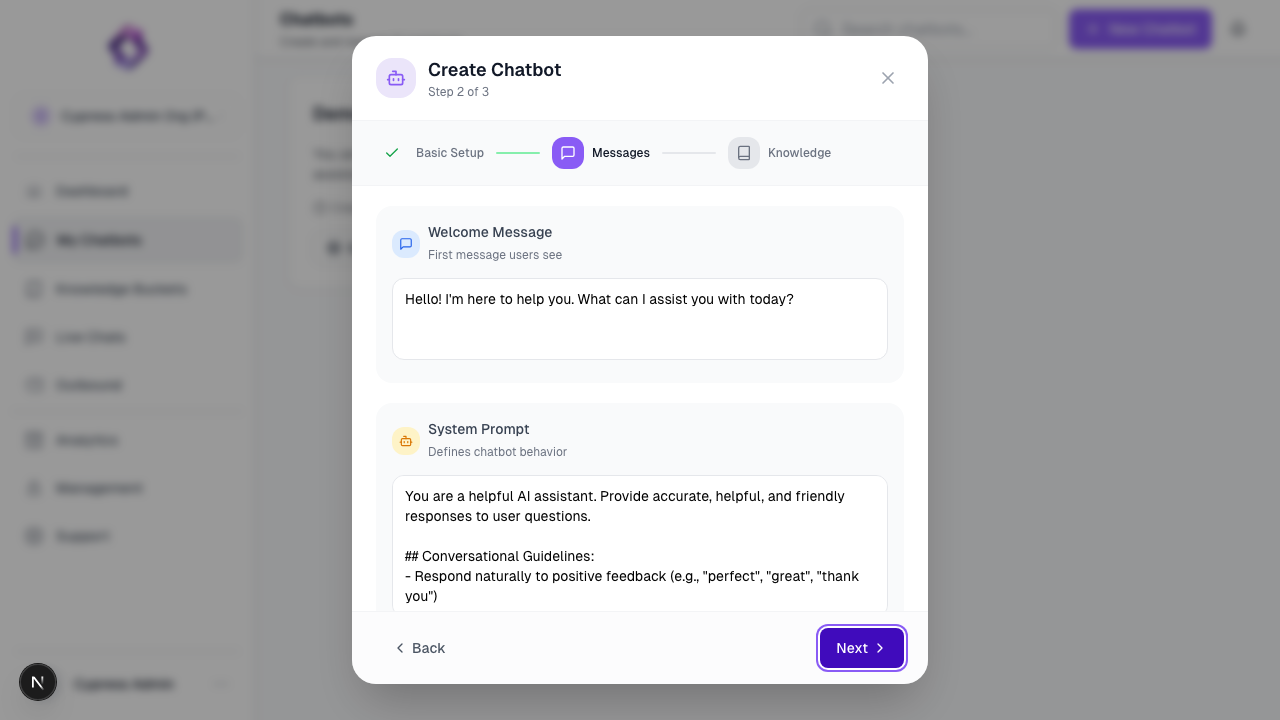
1. System Prompt (Behavior Definition)
The System Prompt defines how the agent behaves.
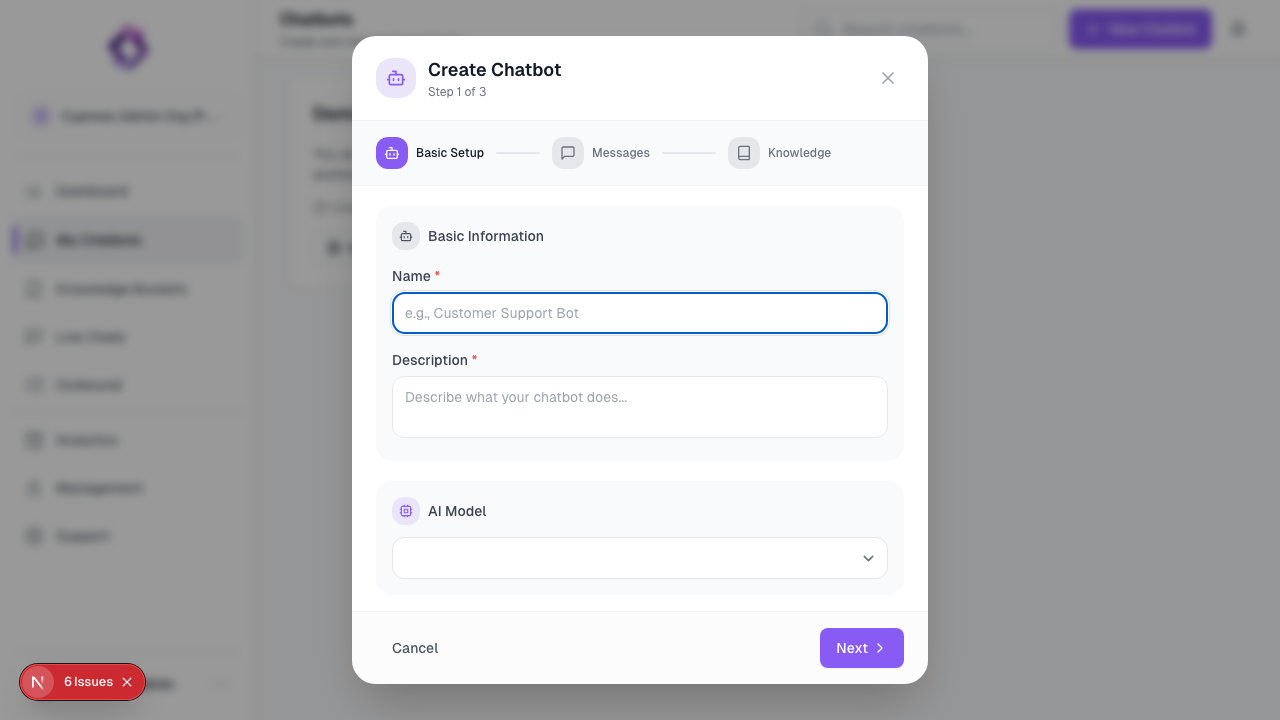
It should clearly specify:
- The agent’s role
- The communication style
- Explicit constraints
Recommended Structure
-
Role
Describe the function the agent performs.
Example:
You are responsible for qualifying inbound leads for a solar installation company. -
Tone
Define how responses should be written.
Example:
Use professional, concise language. Format messages for chat interfaces. -
Constraints
Define what the agent must not do.
Example:
Do not provide information outside the assigned knowledge buckets.
Avoid vague instructions such as “be helpful” or “be smart”.
2. Defining the Agent Goal
Each agent should have one primary objective.
Common goals include:
- Lead qualification
- Appointment scheduling
- Customer support
- Information routing to humans
Goals should be outcome-oriented and measurable
(e.g. “collect contact details” instead of “chat with users”).
3. Model Configuration
Model Selection
Choose a model based on task requirements:
-
GPT-4o / Claude 3.5
Use for complex reasoning, structured conversations, or accuracy-critical tasks. -
Groq (Llama 3)
Use when low latency is more important than deep reasoning.
Model choice affects cost, speed, and response quality.
Temperature
Temperature controls response variability.
-
Low (0.1 – 0.3)
Predictable, factual responses (support, FAQs). -
Medium (0.5 – 0.7)
Natural conversation (sales, qualification). -
High (0.9+)
Not recommended for production agents.
4. Assigning Knowledge Buckets
Agents can only access explicitly assigned Knowledge Buckets.
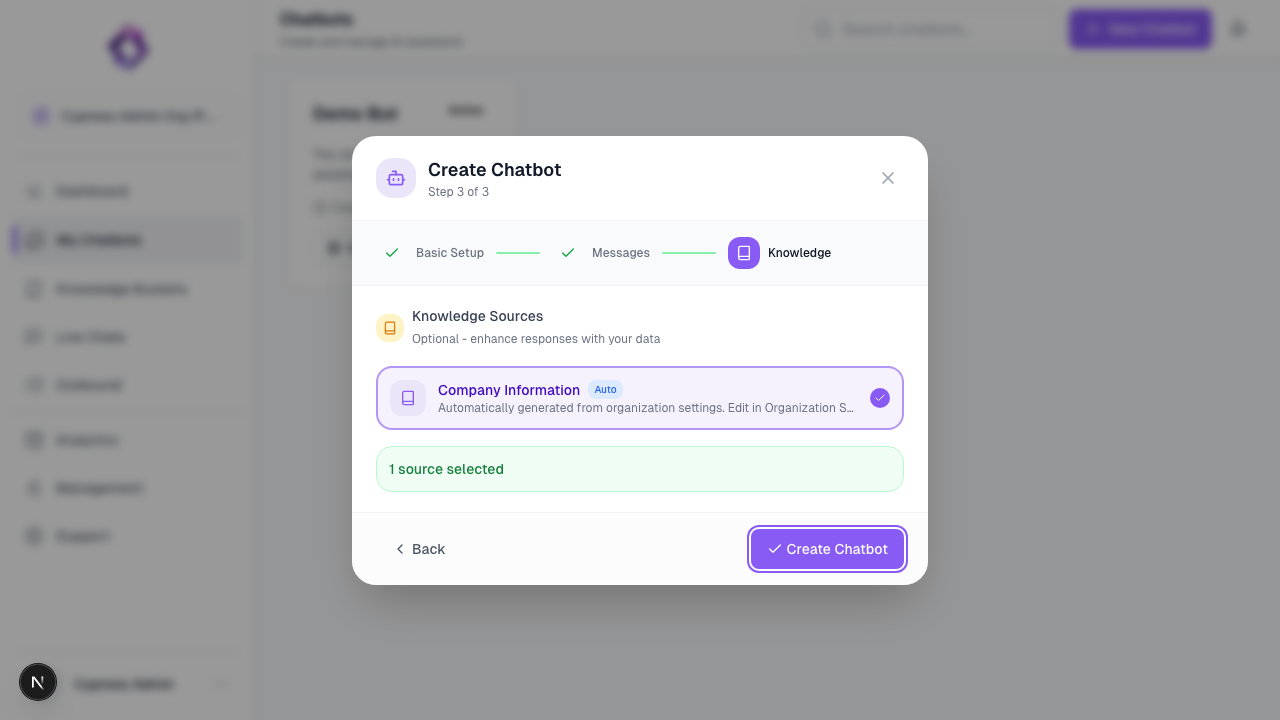
- Select one or more buckets in the agent settings
- The agent will not reference any other data
- Knowledge access is enforced at runtime
This ensures clean separation between clients and use cases.
Advanced Agent Settings
To learn more about Model Selection, Temperature, Conversation Memory, and Vision, visit the Advanced Bot Settings.
Before Moving On
Verify that:
- The system prompt is specific and constrained
- The agent has a single clear goal
- The correct knowledge buckets are attached
- The selected model matches the task
Next Step
Once the agent is created, connect it to a channel: